



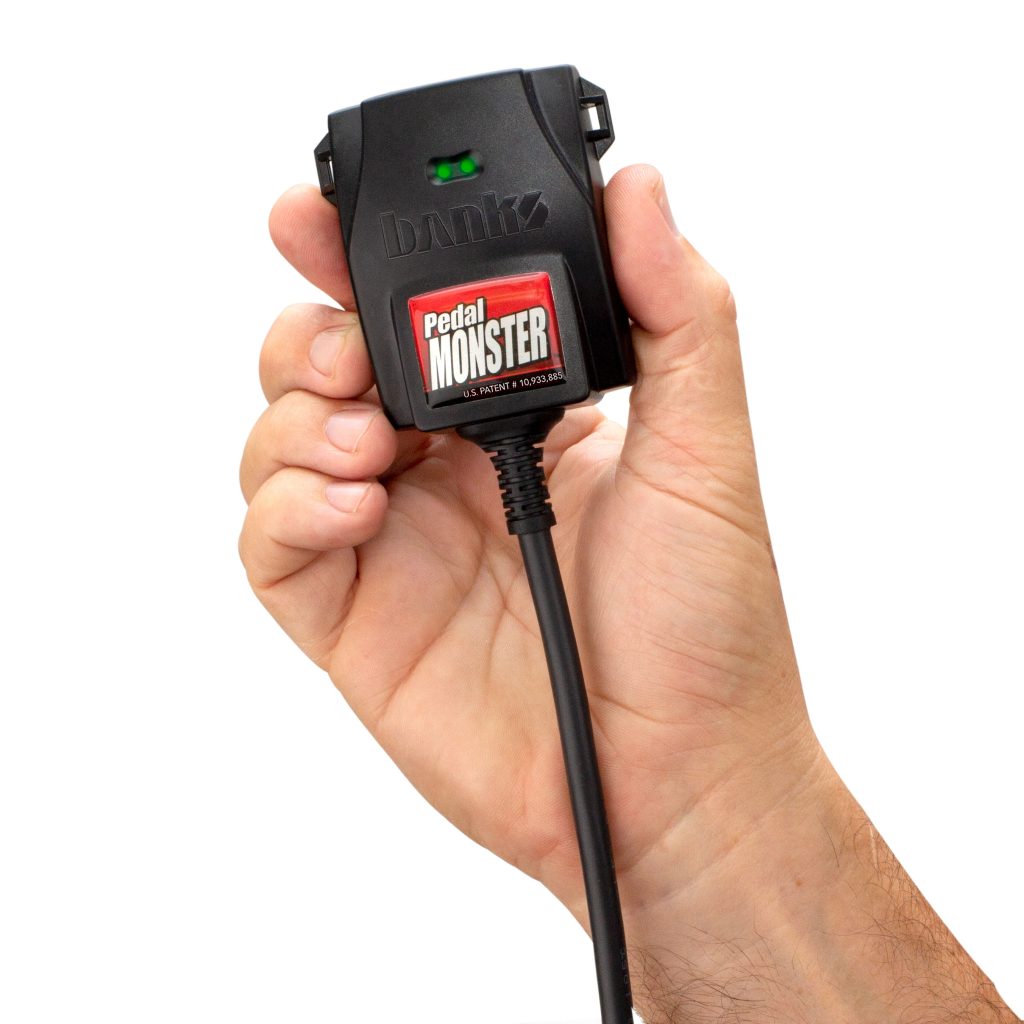
Instructions for updating your PedalMonster.
Updating your PedalMonster using the Banks mobile app is quick and easy. When connected to the mobile app, the PedalMonster will automatically check for the latest firmware available at app launch and will prompt you to update wirelessly when a new version becomes available.
If you are interested in updating your Banks PedalMonster via SD card, follow the instructions on this page.
Before updating your Banks PedalMonster, check to see if an update is needed.
Please read through the entire process before beginning the update process. Instructions are listed below the video.
1. Download firmware file below
Download » PedalMonster_61320-05-024.bdb
61320.05.24 Release Notes (06/18/2026):
- Additional Acura/Honda vehicle support.
- More Robust extended calibration sampling occurs twice rather than just once.
- Tightened accelerator pedal adjustment lockout zone from 5%-2%.
61320.05.23 Release Notes (05/12/2026):
- Bug fix reporting and calibration for accelerator pedal voltages.
- Bug fix for 2025 GMC/CHevrolet OBDII communication.
- Bug fix for Mercedes Sprinter pedal calibration.
- Bug fix for 2025+ RAM
61320.05.22 Release Notes (03/01/2026):
- Minor bug fixes
61320.05.21 Release Notes (03/26/2026):
- Bug fix fior APP trace offset.
- Updated CAN message format processing for improved robustness.
- Expanded bug fix for 2025+ RAM gas vehicles.
61320.05.20 Release Notes (02/27/2026):
- Added Reverse Safety improvements for:
+ 2026 Toyota Tundra
+ 2026 Ford Maverick 2.5L Hybrid - Calibration Updates
- Fix for Battery Draining Bug
- Improved Sprinter Van Vehicle Detection
61320.05.19 Release Notes (01/16/2026):
- Added Reverse Safety improvements for:
+ 2025+ RAM
61320.05.18 Release Notes (9/15/2025):
- Reverse Safety improvements for:
+ Sprinter Vans 1500, 2500, 3500
+ Older Jeeps
+ Honda Odyssey
+ Honda Ridgeline
61320.05.17 Release Notes (7/17/2025):
- Reverse Safety improvements for:
+ 2013-2017 RAM
61320.05.16 Release Notes (6/10/2025):
- Added reverse safety support for Standalone Pedal Monster for the following:
+ 2021 – 2022 Honda Accord 1.5L
+ 2013 Honda Civic 1.8L
+ 2016 – 2017 Jeep Wrangler 3.6L Gas
+ 2020 – 2021 Subaru Outback 2.5L NA
61320.05.15 Release Notes (6/3/2024):
- Added reverse safety support for Standalone Pedal Monster for the following:
+ 2022 – 2024 Tundra (Gas and Hybrid)
+ 2014 – 2015 4Runner
+ 2024 Tacoma
61320.05.14 Release Notes (2/9/2024):
- Added reverse safety support for Standalone Pedal Monster for the following:
+ 2024 Duramax L5P
+ 2022 Duramax LM2
+ 2023 – 2024 Duramax LZ0
61320.05.13 Release Notes (8/30/2022):
- Support for the following new vehicle types: 2022 Toyota Tundra, 2020 Jeep Gladiator, Chevy Tahoe 3.0L LM2
- Communication improvement between iDash and Pedal Monster
61320.05.12 Release Notes (9/28/2021):
- New safety features:
– Prevent APP calibration while vehicle is in motion
– Prevent software updating while vehicle is in motion
61320.05.11 Release Notes (8/19/2021):
- Reverse safety added for Ford 2021-F150 and 2019-Ranger
61320.05.10 Release Notes (5/27/2021):
- Support for the following new vehicle types: 2021 Toyota RAV4, 2021 Ford 6.7L F-250
61320.05.9 Release Notes (4/30/2021):
- Vehicle auto-detection feature
- Support for the following new vehicle types: 2015 Toyota Rav4, 2013 Toyota Tacoma, 2015 Toyota Tundra 5.7L, 2006 Toyota Tacoma
61320.05.8 Release Notes (10/30/2020):
- OBDII communications improvements for Ford 6.7L
61320.05.7 Release Notes (09/21/2020):
- Additional Reverse Safety support
- Reverse Safety improvements
- Added Vehicle Selection setting via phone app for standalone use
61320.05.6 Release Notes (08/17/2020):
- OBDII Communications Improvements
61320.05.5 Release Notes (08/14/2020):
- Test Mode Entry Sequence Improvements
61320.05.4 Release Notes (7/31/2020):
- Additional Reverse Safety support
- LED driver improvements
61320.05.3 Release Notes (7/14/2020):
- Added OBDII CAN Enable/Disable feature
61320.05.2 Release Notes (7/7/2020):
- Additional Reverse Safety support
- 29-bit OBDII CAN support
61320.05.1 Release Notes (6/22/2020):
- Initial Release
2. Insert micro-SD card into PC
Using a USB SD card reader or similar device, insert micro-SD card into your computer.
Note: Make sure that any previous update files have been properly removed from the microSD card. Not doing so can cause unexpected results.
micro-SD card is included with iDash 1.8 if you added the data logging option. Otherwise, any micro-SD card from 1GB up to 16GB will work with the iDash 1.8
3. Locate downloaded file
Open Windows File Explorer and Locate the micro-SD card drive
4. Move file to micro-SD card
Transfer firmware file to micro-SD card by dragging files onto SD card drive
5. Eject micro-SD card
Eject and remove micro-SD card from computer
6. Insert micro-SD card into iDash 1.8
In your vehicle, insert micro-SD card into the front of the iDash 1.8
7. Turn Key to “ON”
Turn ignition key to “run” position (do not start engine)
8. Wake the iDash 1.8
Press any button to wake up the iDash 1.8
9. Enter the Menu Screen
Press the Select button (top right) to enter menu screen
10. Select “Firmware Update”
Use the Up and Down buttons to highlight “Firmware Update” then press the Select button
11. Select “PedalMonster”
Use the Up and Down buttons to highlight “PedalMonster” then press the Select button
Note: If you do not see “PedalMonster” in this menu, please verify installation and wiring are correct by referencing the PedalMonster Owner’s manual.
12. Select firmware downloaded in step 1
Select the proper firmware file that you downloaded in step 1
Note: If your vehicle has two firmware files try the first file, if you receive an error message try the second file.
13. Follow prompts and wait for install
Follow iDash 1.8 prompt and wait for firmware to install (approximately 1 min).
WARNING! Do not remove micro-SD card or turn vehicle off during update
14. Test Update
Once the PedalMonster firmware update is complete, start your vehicle. Press the Up and Down buttons while on the PedalMonster or PedalMonster combo screen to verify that the PedalMonster Environment/Power level can be changed properly.
Congratulations! You are done updating your Banks PedalMonster.